Setlists and sessions
Building a setlist from your songbook, the difference between a setlist and a session, and sharing both with a band.
SetForge has two kinds of song list, and the difference matters.
Setlists (Songbook → Setlists tab) are yours: persistent, reusable, not tied to a date. Your standing acoustic set, your open-mic ten.
Sessions (Sessions tab) are one real gig or rehearsal on one date, tied to a group, with an optional venue and a status the host can move between planning, live and done. Each session gets its own setlist that group members can add to, with a "suggested by" note showing who added what.
Both kinds show a running total duration beside the name, summed from each
song's duration, with a + if some songs don't have one set yet.
Building a setlist
Open the song list opens a drawer with your full songbook — search, tag filters, category filter, A–Z. Each row has + Add, which flips to ✓ Added. The drawer deliberately stays open so you can add several songs in a row.
Reorder by dragging. Each song's row also opens its Perform in / Capo overrides for that setlist.
Import setlist…, above the setlist list, reads in a setlist someone has sent you as a file — see Sharing a setlist in section 8.
Groups
The group switcher lives under Sessions. A group is whoever you play with — a band, a duo, a looser circle of people. You can belong to several and switch between them — they're shown one at a time, never merged — and create a new one by typing a name.
Each group has a roster showing the leader and members by display name. The leader can invite by email and remove members; everyone else can leave.
An invite doesn't add anyone straight away. The person invited sees it as a banner next time they open SetForge and chooses Accept or Decline; until then the leader sees them on the roster as (pending) and can revoke the invite. Inviting an email that has no SetForge account looks the same as any other invite — SetForge won't tell you whether someone has an account.
Events — a buskers night, an open mic, a showcase
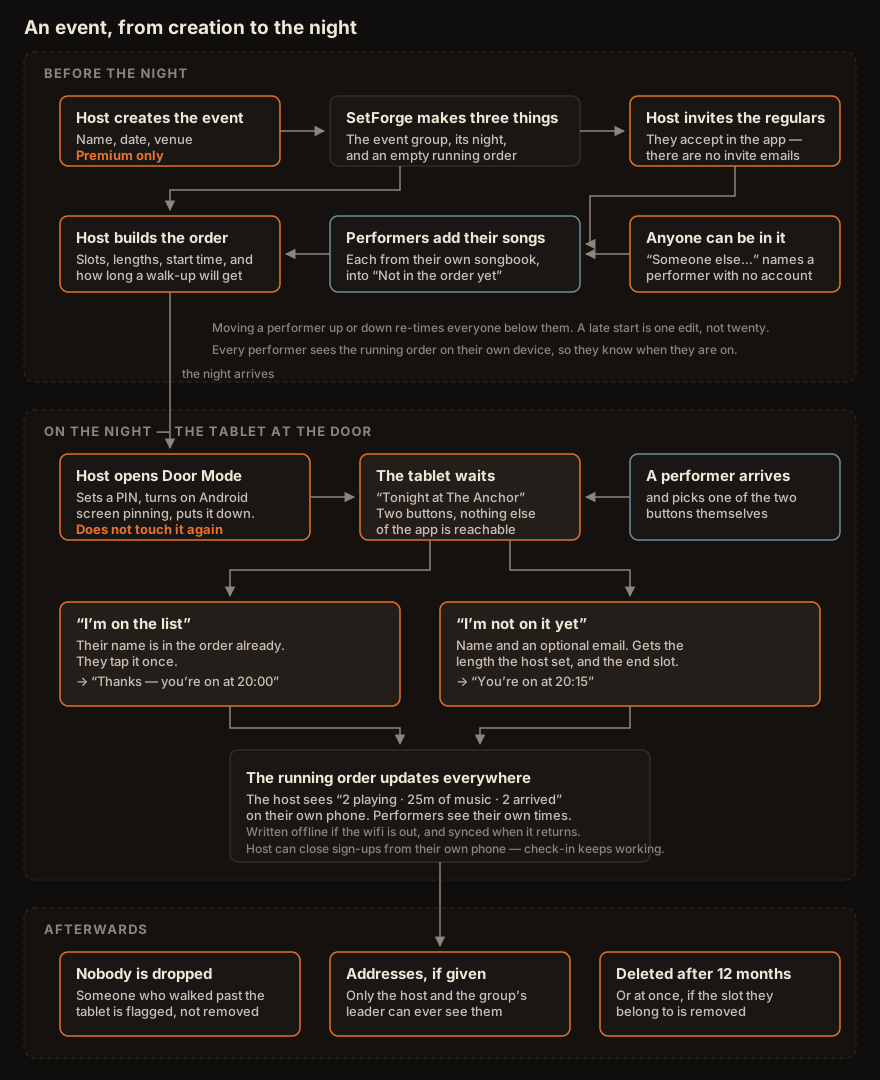
An event is a one-off night with several performers who aren't your usual group: a buskers evening, say, where everyone plays a short slot. Hosting one is a premium feature; being invited to one isn't.
The Groups | Events toggle at the top of Sessions appears once you host an event or are invited to one — and if you're premium, so you can create your first. There's a switch in Settings → Sessions to hide it again.
Creating one. In Events, fill in a name, a date and an optional venue. SetForge makes the event, its night, and the running order that goes with it in one go — you don't create a session separately.
Inviting performers. Same roster and the same Accept/Decline step as a group, with two differences worth knowing before you rely on it:
- Joining the event as a member needs a free SetForge account. An invite to an address that hasn't signed up reaches nobody, and SetForge won't tell you which happened. Playing doesn't — see "Anyone can have a slot" below.
- There are no invite emails yet. Performers find out by opening the app. The running order shows "N waiting to accept" so you can see who hasn't answered and chase them yourself.
Everyone in an event can see everyone else's songs — the whole running order is shared, which is the point of it. Worth saying to performers who expect their material to stay private.
Played here before. Once you've run a night or two, the roster lists the people who have played your past events, with how many of your nights each has done and when they last did — newest first. Invite puts them on this one without you typing anything. It's the same invite as any other: they still accept it in the app.
It only ever shows your own events. SetForge won't tell you how many other people's nights someone has played, and there's no way to browse SetForge's users or look up whether an address has an account — you can invite anyone whose address you already know, and that's the whole of it. People on this event already, and anyone you've invited but who hasn't answered, drop off the list until they do.
The running order
Each performer adds their own songs to the event, exactly as a group member adds to a shared session setlist. They arrive in Not in the order yet, with a note of who submitted them.
As host you build the night from there:
- Starts sets the time the night begins.
- Add a performer with a slot length (5 to 60 minutes) — a performer can have more than one slot.
- Each slot shows its computed clock time, e.g.
20:00–20:15. Times are worked out from the start time and the lengths before each slot, so moving a performer up or down re-times everyone below them, and a late start is one edit rather than twenty. - Put in slot… moves a submitted song into a performer's turn; Unplace sends it back.
- Removing a slot doesn't delete anyone's songs — they return to the not-in-the-order list.
Anyone can have a slot. The performer picker has a "Someone else…" option: type a name and they're in the order, no account needed. That's how the regular who never got round to signing up, and the walk-up who turns up on the night, both get written down. A named performer needs nothing but a name and a length — songs are optional, and you can put your own songs in their slot if you want to. Membership is about accounts; the running order is about whoever is playing.
Runs for says how long the whole night is. It's optional and starts unset, and it does two things once you set it: the count line shows how much of the night is spoken for, and the tablet at the door stops promising second slots once the order fills it.
The line above the order counts people rather than slots: "3 playing · 45m of music", or "3 playing · 45m of 2h" once you've set Runs for, with "full" added when the order has filled the night. Then "N waiting to accept" if anyone you invited hasn't answered, and "N arrived" once people start checking in at the venue.
Performers see the running order too, so they know when they're on. Only the host or the group's leader can change it.
Without a start time the running order still works as an ordered list — the slots are numbered instead of timed.
The tablet at the door
If you've got a spare Android tablet, Door Mode turns it into the sign-in desk for the night. People arriving either confirm the slot they already have or add themselves to the end of the order — and you don't have to stand over it.
SetForge installs as an app: open the site in Chrome on the tablet and choose Add to Home screen. You get an icon and a full screen, same as any other app.
Starting it. On the running order, tap Open door mode, set a PIN of 4 to 8 numbers, and put the tablet down. Turn on Android's own screen pinning (Settings → Security → App pinning) at the same time — that stops anyone swiping out of SetForge altogether, and it's the half of the lock that Android does better than we can.
What a performer sees. The venue name and two buttons, and nothing else of your app — no Songbook, no Settings, no way to sign you out.
I'm on the list shows tonight's names and times. They tap theirs and get "Thanks — you're on at 20:00". Names already checked in are ticked and can't be tapped twice.
I'm not on it yet asks for a name and, optionally, an email. It doesn't ask how long they want: they get the length you set under Walk-ups get on the running order, and the screen tells them what that is. They're added to the end of the order, told their time straight away, and told "You may get a second slot if time allows" — so a short first spot doesn't read as the whole of their night.
That last line goes quiet on its own once the running order has filled Runs for: at that point there's no second slot to be had, and the tablet shouldn't promise one you'd have to take back in person. If you haven't set Runs for there's no "full" to reach, and the line always shows. Someone checking in against a slot they already have isn't told any of this, because they agreed their slot with you already.
Email is optional and stays yours. It's asked for, never required, and used only to contact that person about that event. Performers can't see each other's addresses: only you and the group's leader ever do, under "N addresses left at the tablet" on the running order. Addresses are deleted after 12 months, and at once if you delete the slot they belong to.
Each address there has a Delete beside it, for when someone asks you to take theirs off sooner. It removes the address only — their slot stays in the running order, so honouring the request doesn't cost you your night's line-up.
How long a walk-up gets is yours to decide, not theirs. Walk-ups get sits next to Open door mode; set it once for the night and every self-sign-up takes that length. A picker on the tablet would invite a stranger to help themselves to half an hour on a ten-minute night — and you'd only find out when the order had quietly grown. You can still stretch or shorten any individual slot afterwards, from your own phone.
Closing the door. Tick Sign-ups closed on your own phone and the tablet stops taking new names — check-in still works, because turning up late isn't the same as signing up late. There's also a ceiling of 40 slots, so an unattended tablet can't be fed nonsense all night; past that, add people yourself.
Getting out. Exit door mode at the bottom asks for the PIN. It's deliberately small — it's for you at the end of the night, not something an arriving performer should notice.
A few things worth knowing:
- It works offline. Pub wifi drops constantly. Check-ins and walk-ups are saved on the tablet and sync when the signal comes back.
- Nobody is ever dropped. Someone who walks straight past the tablet just isn't ticked. The tablet is a convenience, not a register — you decide.
- You can fix it by hand. Each slot on your own phone has a ✓ you can tap to mark someone arrived or not, if they tapped the wrong name.
SetForge keeps your songbook on your own device. Chords, lyrics, setlists and practice tracking, working with or without a signal. Free for up to 200 songs — try it.