Keys, capo and transposing
How transposing and capo position work together, and how to keep a chart in the key you actually sing it in.
Four different controls change the chords on screen, and they persist differently. This is the part most worth reading twice.
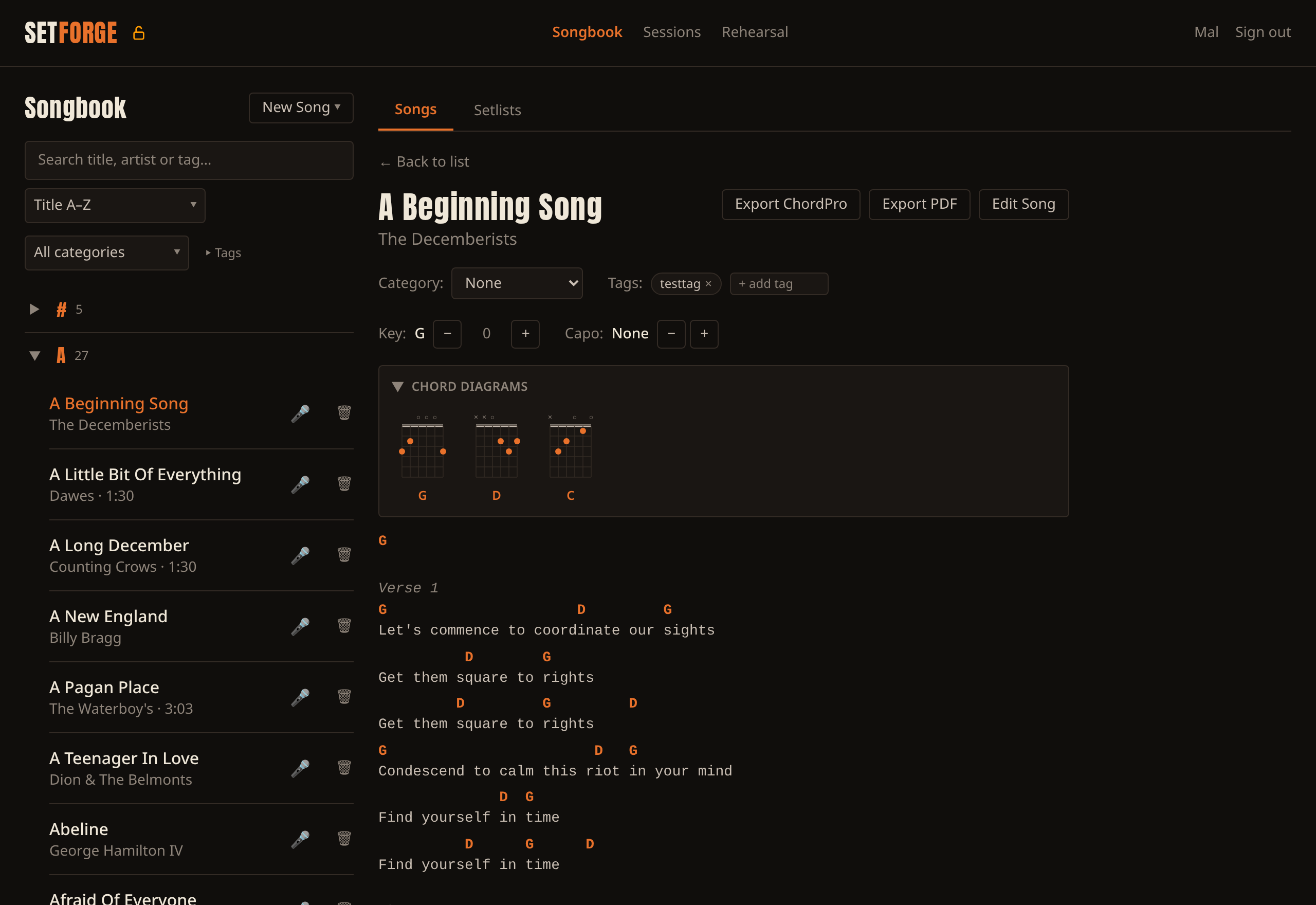
1. Transpose (± on the song page) — temporary. Shifts the sounding key a semitone at a time, with a reset link once it's non-zero. Held in memory only: navigate away and it's gone. It doesn't reach exports, PDFs or anyone you share with. Use it to try a key, not to record a decision.
2. Capo (± on the song page) — saved, yours alone. Changes the shapes you finger without changing the sounding pitch, shown as "Capo 3 — playing D shapes, sounding in F". Stored per person, so your bandmates keep their own capo for the same song. Chord diagrams follow the shapes.
3. Re-base to key (in the editor) — permanent. Rewrites every chord in the stored chart along with the key label. This is the one that means this song now lives in A: it applies to exports, print and everyone you share with. Because it edits the draft, Cancel still backs out of it. It's disabled until the song has a key, since there's nothing to measure the shift from.
4. Perform in / Capo (setlist entry) — saved, one setlist only. Opened from a song's row inside a setlist. "Perform in" offers the song default plus any key; "Capo" offers follow-my-capo, no capo, or a specific one. Both fall back to the song's own settings, and there's a button to clear the overrides.
The rule underneath all four: the chart is always stored at sounding pitch. Capo and transpose are applied when the chart is drawn, never to the stored text. Re-base is the deliberate exception.
Chord diagrams. The song page has a collapsible row of fretboard diagrams that follow your capo and transpose, so they show the shapes you're actually making.
SetForge keeps your songbook on your own device. Chords, lyrics, setlists and practice tracking, working with or without a signal. Free for up to 200 songs — try it.