Building your songbook
Adding songs, editing chords and lyrics, categories and tags, and linking a recording to a chart.
Songs live in the Songbook tab, listed A–Z and grouped by first letter, with each letter collapsible and showing a count.
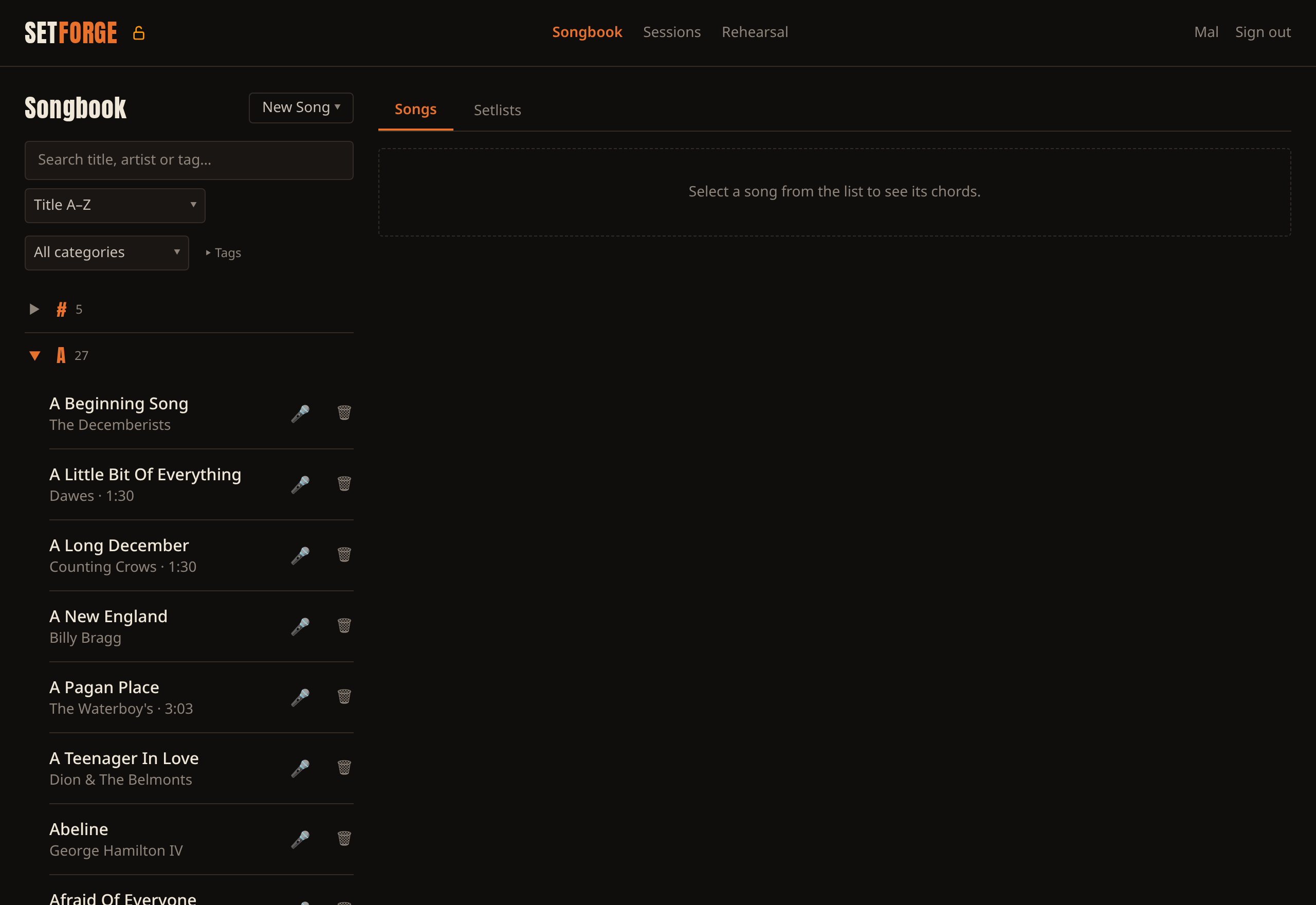
Above the list: a search box (matching title, artist or tag), a sort control, a category filter and tag filters.
Sorting offers A–Z, Recently modified, and Needs practice — that last one puts your rustiest songs at the top, using the same ranking as the Rehearsal page.
Tag filters. If your library has more than eight tags, the tag pills sit
behind a ▸ Tags toggle so they don't crowd out the songs. Tags you've
switched on stay visible even when the section is collapsed, and the toggle
shows the count — ▾ Tags · 3 selected — so a short list always has a visible
cause.
Each row has a 🎤 button (open in Stage mode) and a 🗑 button. Deleting asks first, and tells you plainly that it also removes the song from any setlists and deletes its backing tracks.
On a phone
The song list isn't on screen. It lives behind a ☰ Browse button at the right-hand end of the Songs / Setlists tab row, and there's a Browse songs button in the empty state too. Both open the same panel.
Tap a song and the panel closes onto the chart. ✕ Close backs out without choosing, and ← Back to list returns from an open song.
Adding songs
Three ways in, all under the New Song ▾ menu.
New Song drops straight into the editor, since a new song has no chart yet.
Import from File takes Songbook Pro files (.sbp, .sbpbackup), a zip of
ChordPro files, or a single .cho / .crd / .chordpro / .chopro / .pro
/ .txt, or a Word .docx chord chart. Older Word .doc files (Word 97-2003)
aren't supported — re-save them as .docx in Word first. This one is bulk and fire-and-forget: no review step, just a summary
when it finishes. Files that carry a capo are transposed to sounding pitch on
the way in.
Import from UG searches Ultimate Guitar by title, or takes a pasted tab URL. Searching lists the available versions with artist, type, version number and rating so you can pick a good one. Either route lands you on a review step before anything is saved, because UG's markup doesn't always convert cleanly. On that screen you can fix the title, artist, key and capo, edit the converted ChordPro directly, and choose a Transpose to key so the song is saved in the key you actually play it in.
Editing a chart
Two modes. Chords over Lyrics is the everyday one: type the chord line
directly above the lyric line it belongs to, no brackets needed. Section
headers like Verse: and comments starting # work as you'd expect. Text
mode gives you raw ChordPro if you prefer it.
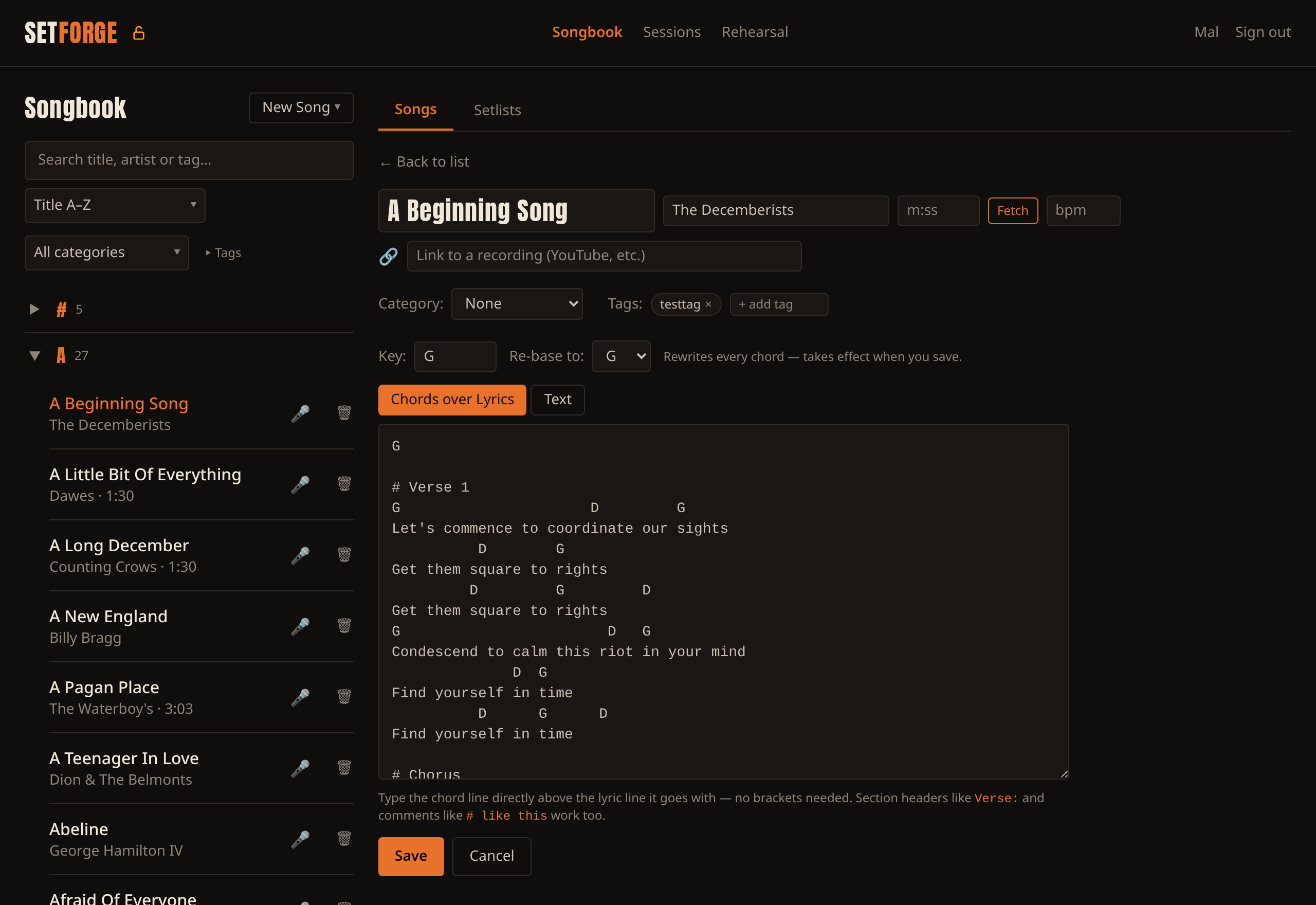
Alongside the chart you can edit title, artist, duration (with a Fetch button that looks up a reference length), bpm and key.
Category and tags are edited from the song page itself, not inside the editor.
A link to a recording
Under the title and artist fields there's a link box marked with a 🔗. Put in the version you learn the song from — a YouTube video, a Bandcamp page, anything on the web. One link per song.
Once it's saved, a 🔗 appears next to the song title in two places: on the song page, and beside its name in the songbook list. Tapping it opens the recording in a new tab, so you can get to it from the list without opening the song first. Tapping the song's name still opens the song as usual — the two don't collide.
You don't have to type the whole address. youtu.be/dQw4w9WgXcQ is enough;
SetForge fills in the https://. To remove a link, clear the box and save. If
what you typed isn't a web address, the save is refused and the box tells you
so, rather than quietly dropping the link you already had.
Categories and tags
These are two different tools and it's worth getting the distinction straight.
Category = where the song stands with you. One only. Tags = everything else, including genre. As many as you like.
A song has exactly one category, so it only suits something where a second value would be nonsense — what can I play tonight? A workable set:
| Category | Meaning |
|---|---|
| Gigging | In the repertoire, ready tonight |
| Learning | Working on it, not performance-ready |
| Resting | Knew it once, would need a run-through |
| Retired | Played out, kept for the record |
| Idea | Sketches and originals in progress |
These aren't enforced — the field is free text — but the value is that five categories cover every song exactly once.
Genre belongs in tags, not categories. Songs are honestly multi-genre;
folk-rock and Americana don't survive being forced into one slot. Tags let a
song be folk and blues without a fight. Tags also carry how you play it
(acoustic, alt-tune, capo3), who you play it with, and how it goes down
(crowd-pleaser, opener).
One thing to avoid: set membership as a tag (set1, set2). That's what
setlists are for — a tag doesn't reorder, doesn't drive Stage mode, and drifts
out of sync the moment you change one and not the other. A standing shortlist
like top20 meaning "songs I can play cold" is fine, because it isn't a
running order.
Fixing a typo. A mistyped category silently splits your songbook in two, so the category dropdown offers Rename "X" everywhere…, which fixes every song carrying it at once. Tags have no equivalent — a mistyped tag must be removed song by song, which is a good reason to keep your tag vocabulary small.
Looking up genres automatically
Optional, and off until you turn it on: Settings → Songbook → "Auto-suggest genre tags from MusicBrainz." The setting is per device.
With it on, each song gains a Look up genre button beside its tags. It sends just the title and artist to MusicBrainz and offers up to three suggested genres as dashed chips, along with the recording it matched — check that line, because if it matched a different version the genres may not be the ones you want. Tap a chip to accept it, or Add all; Dismiss discards them. Nothing is saved unless you tap, and your existing tags are never changed or removed.
What you might see instead:
- "No genre found" — MusicBrainz doesn't know the song, or has no tags for it. Common for traditional material and your own songs.
- "Nothing new" — it matched, but you already have those tags.
- "Too many genre lookups" — there's a limit of ten a minute, because MusicBrainz is a free shared service.
- "MusicBrainz is busy" / "took too long" — the service is struggling, not your song. Try again shortly; nothing is remembered from a failed attempt.
The tags come from MusicBrainz's community as-is. They're usually sensible and
occasionally odd — one Adele lookup returned dr5 alongside pop. Just don't
tap the odd one. Answers are remembered for 30 days, so a repeat lookup is
instant. This feature needs a connection.
SetForge keeps your songbook on your own device. Chords, lyrics, setlists and practice tracking, working with or without a signal. Free for up to 200 songs — try it.